How to give sketch effect using Photoshop CS2
Adobe Photoshop CS2, the most efficient photo-editing tool offers various artistic effects that can render your simple and typical photographs into dynamic and enhanced art works. One such effect is Sketch effect. In this peculiar style a photograph or an image or converted into a sketch. These kinds of effects are essential while preparing your tour portfolio or just remembrance album of your most memorable journey or anything that needs an artistic look. The only thing you need to bear in mind is that the image should be high contrast in itself to get the best looks. Also see that the background must not be too busy, the simpler the better.
Giving the Sketch Effect Using Adobe Photoshop CS2
The first step is to Duplicate the original layer you are working in call it by some name like copy1 or etc. this can be demonstrated from screenshot 1 as shown below. Now, hide the original layer first. This is how your layers palette will look like.
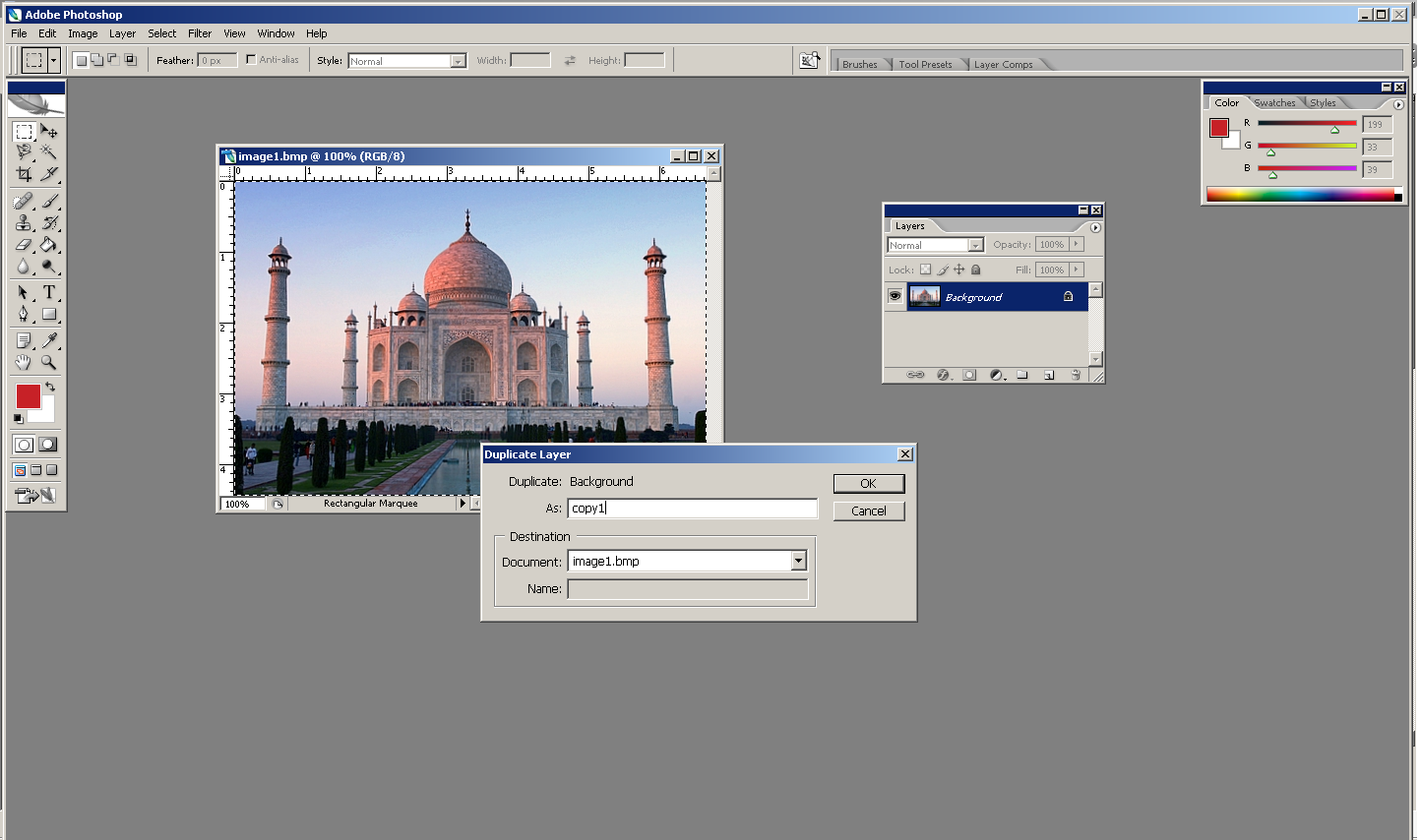
Screenshot.1 Duplication of original layer
Next step you have to perform is to desaturate the recently created layer. To Desaturate select the copy 1 layer and go to Image menu, then select Adjustments and then select Desaturate. This is demonstrated in screenshot 2
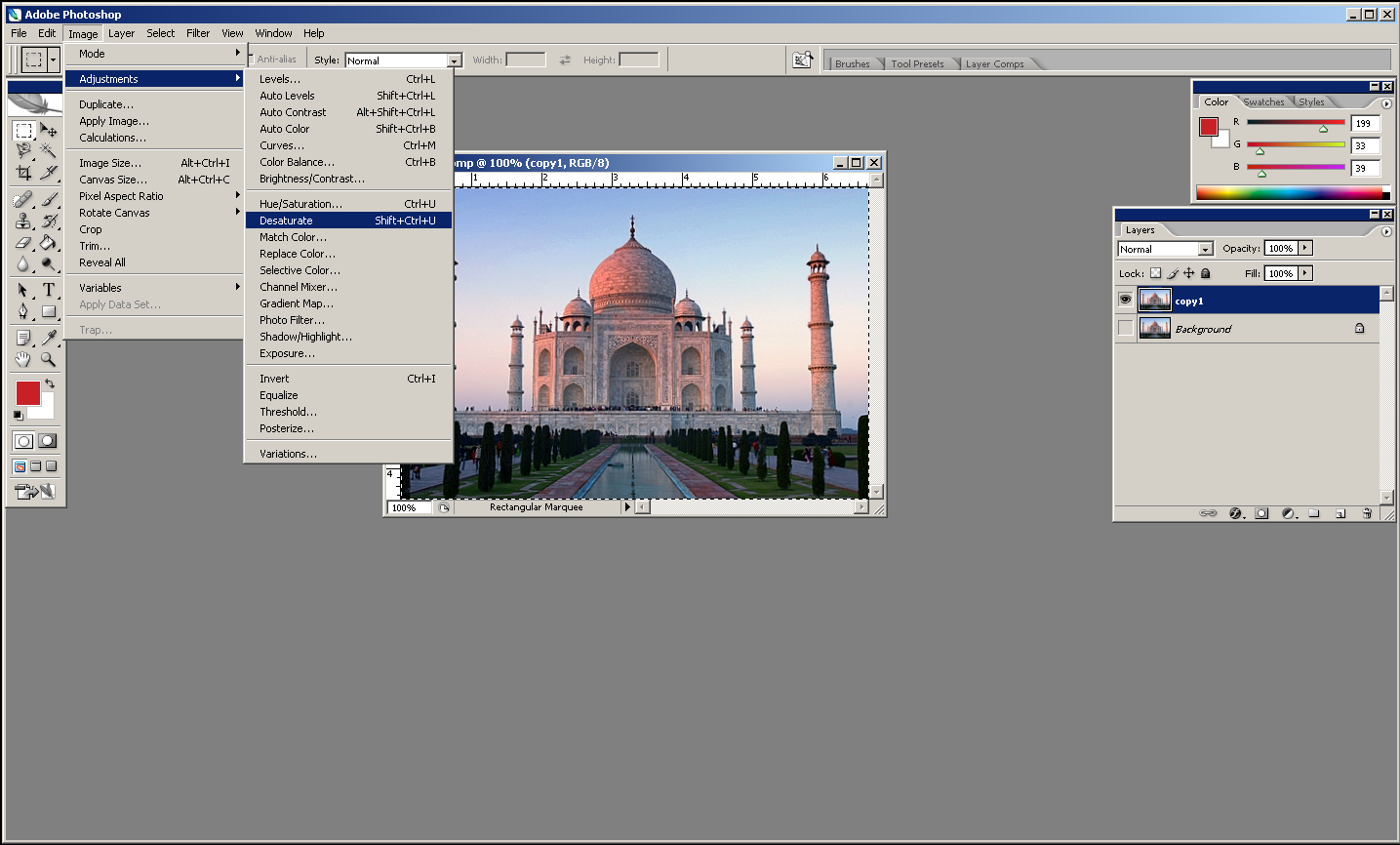
Screenshot.2 Procedure to Desaturate image
The desaturated image will look like as shown in screenshot 3
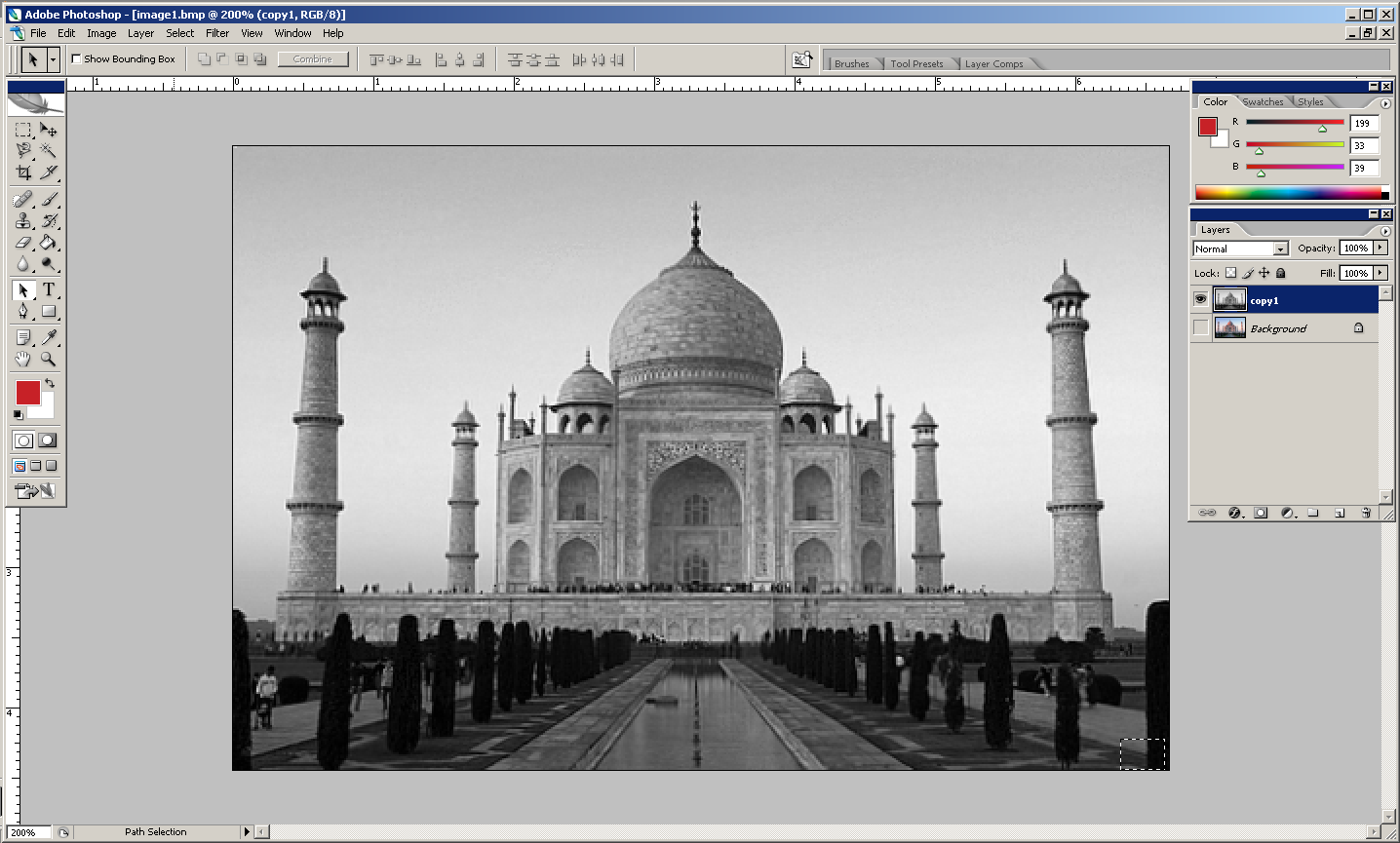
Screenshot.3 Desaturated image
The desaturated image will look like as shown in screenshot 4. Now duplicate this layer too and name it as Desaturated.
Now, select the copy layer and go to Filter menu, then select Sketch and then select Chalk and charcoal. This process is demonstrated in screenshot 4.
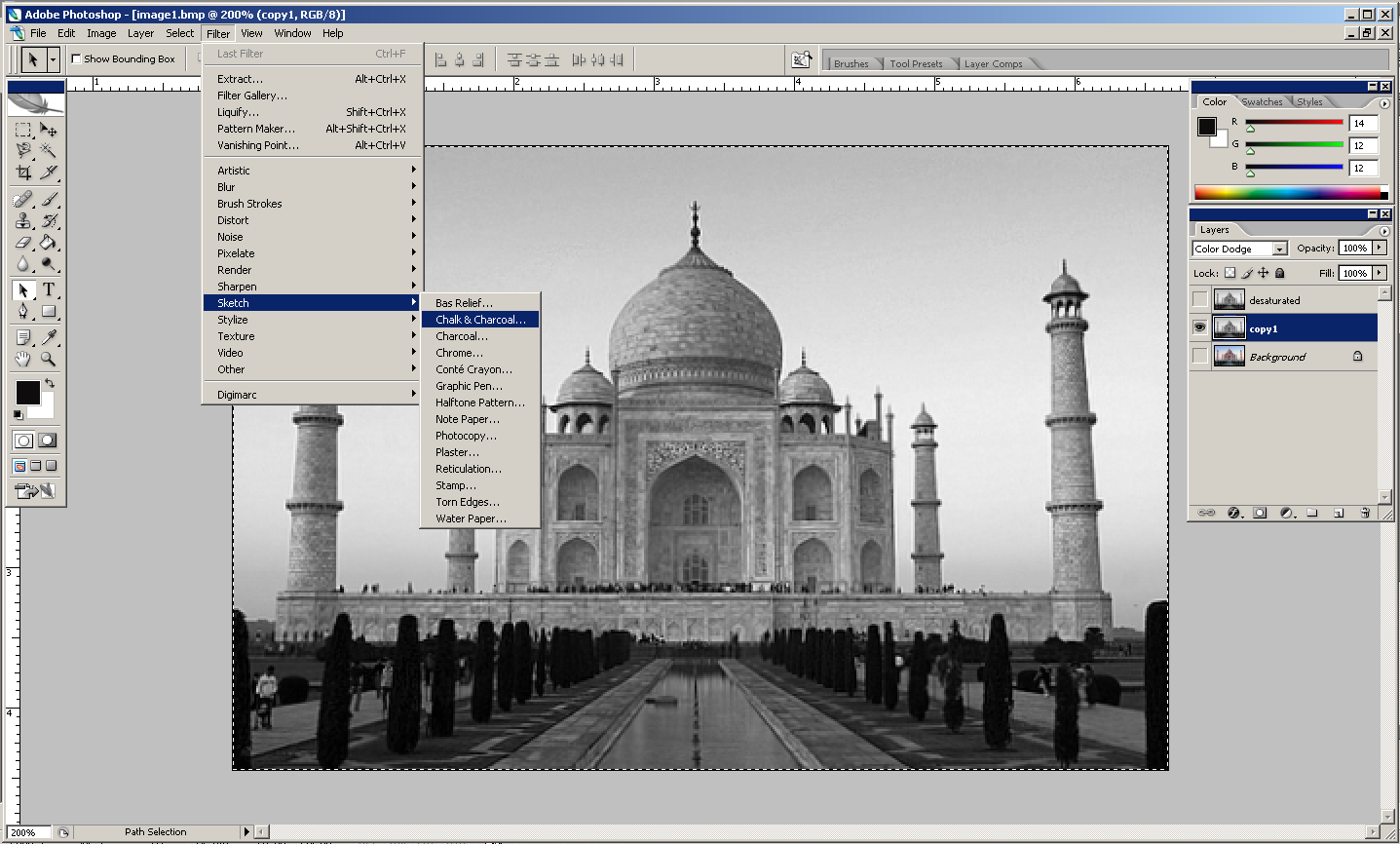
Screenshot.4 Procedure to Sketch image
This command will further open up into sketch window as displayed in screenshot 5. Now playing with different selections suitable to particular image, as in this case I have used Note paper effect one can achieve sketch effect as shown in screenshot 5.
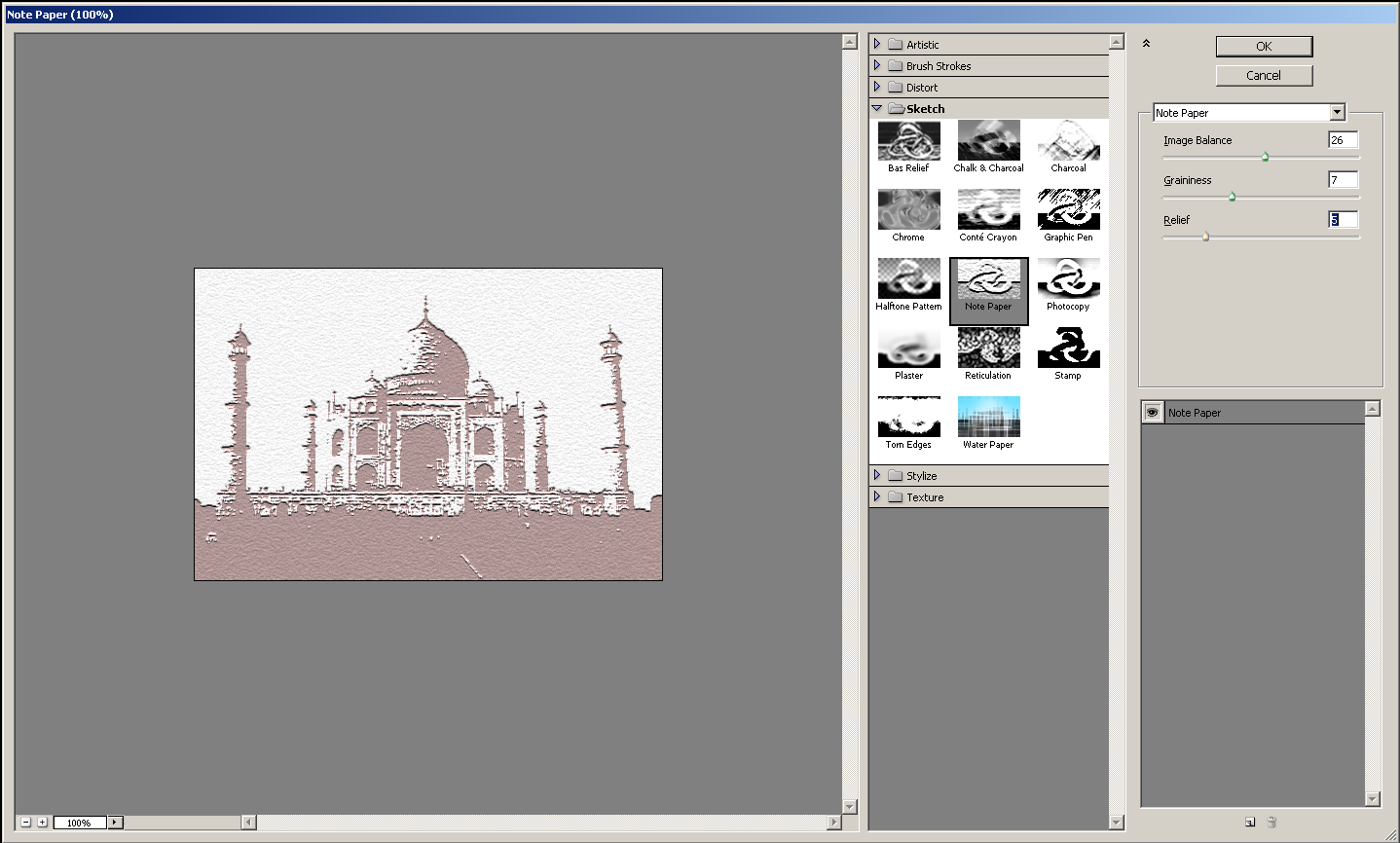
Screenshot.5 Sketch window.
Now finally save this image. The effects applicable for different images are different. It entirely depends on one’s aesthetical appeal and desired result can be obtained by trial and error methods.